How to manage customer communication
Reply publicly to a review, message the reviewer privately, and leave internal notes for your team, all from your Aspect inbox.

Three ways to respond to a review
Every review in your inbox has three tabs under it. Each one reaches a different audience.
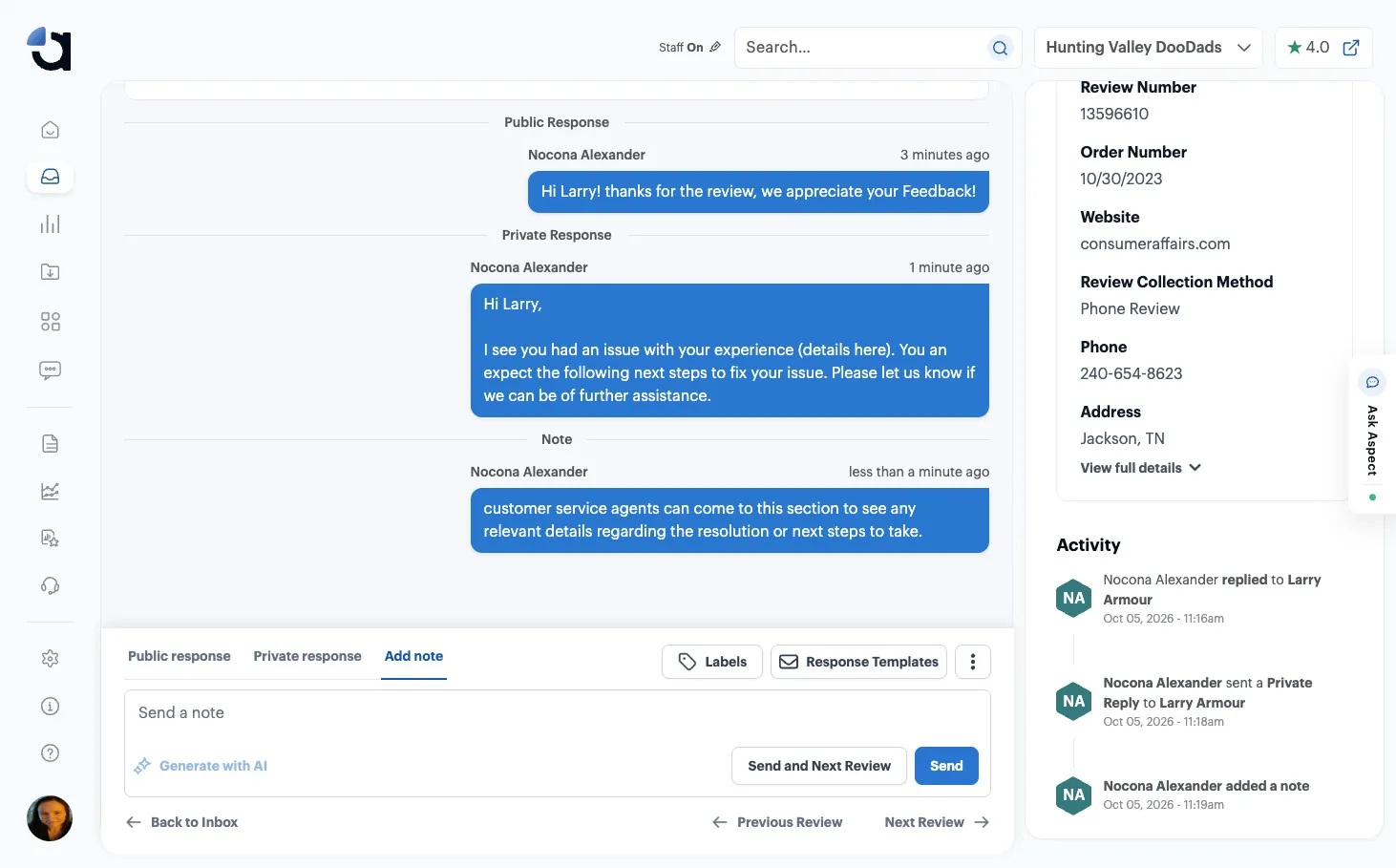
Public response. A high-level acknowledgement of the reviewer's experience. It appears with the review on ConsumerAffairs, so potential customers see that you engage with feedback.
Private response. A message only the reviewer sees. Use it to acknowledge the issue they experienced and tell them the next steps they can expect.
Note. An internal record for your team that the consumer never sees. Use it to track the resolution and the next steps your team needs to take.
What to leave out
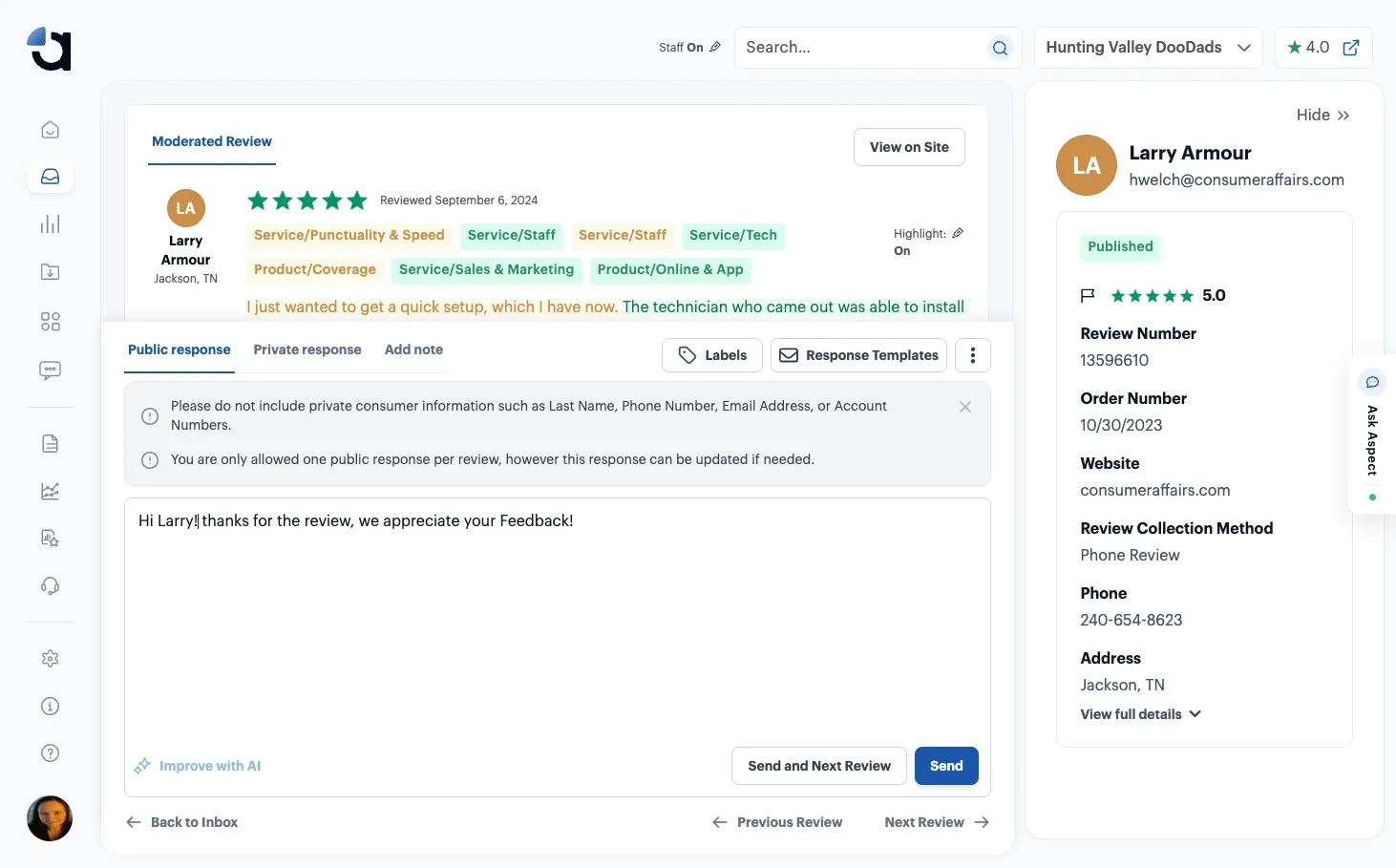
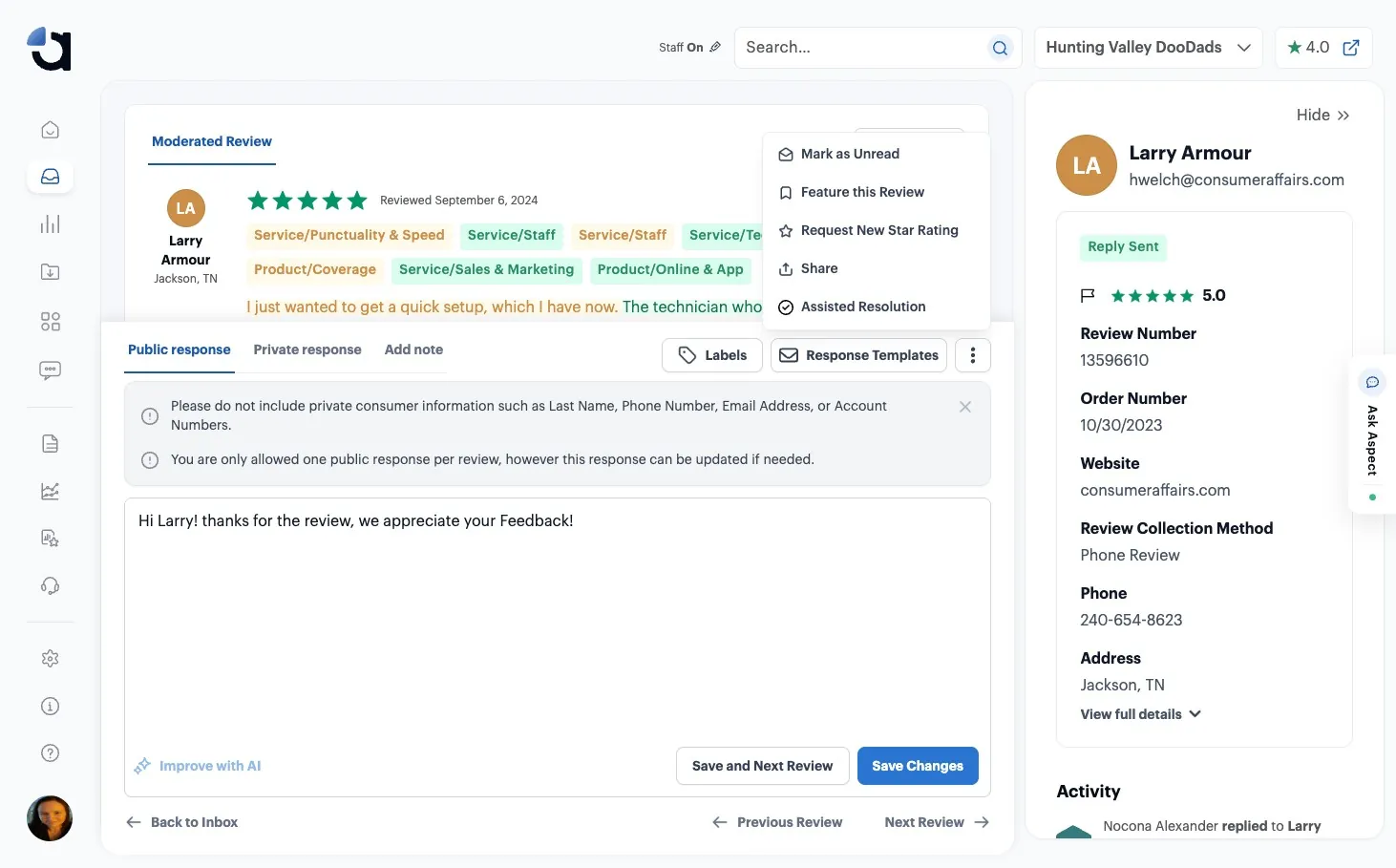
- Private consumer information in a public response, such as a last name, phone number, email address or account number.
- A second public response. You get one public response per review, but you can edit it any time.
Step by step
- 1
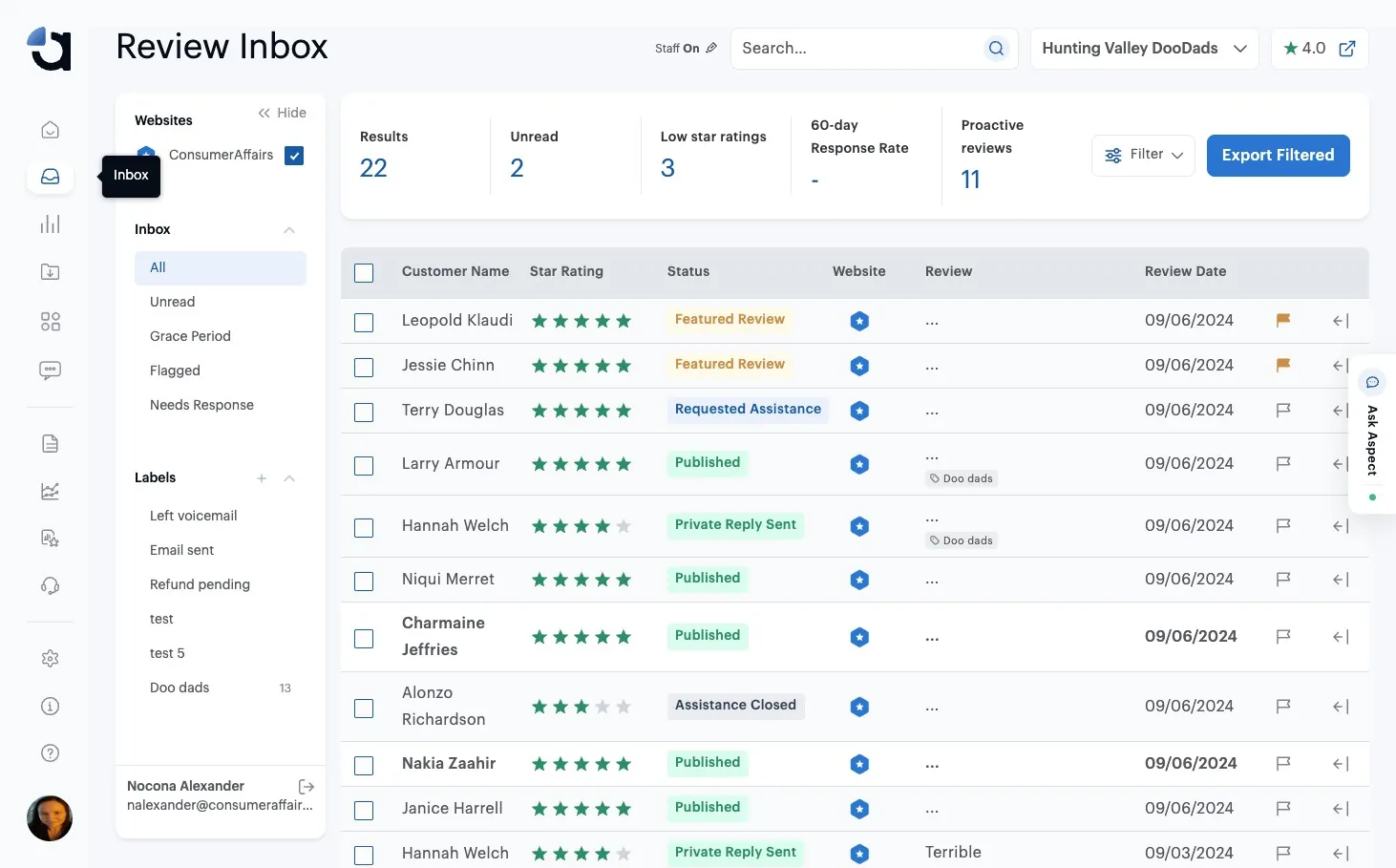
Navigate to your inbox.
- 2
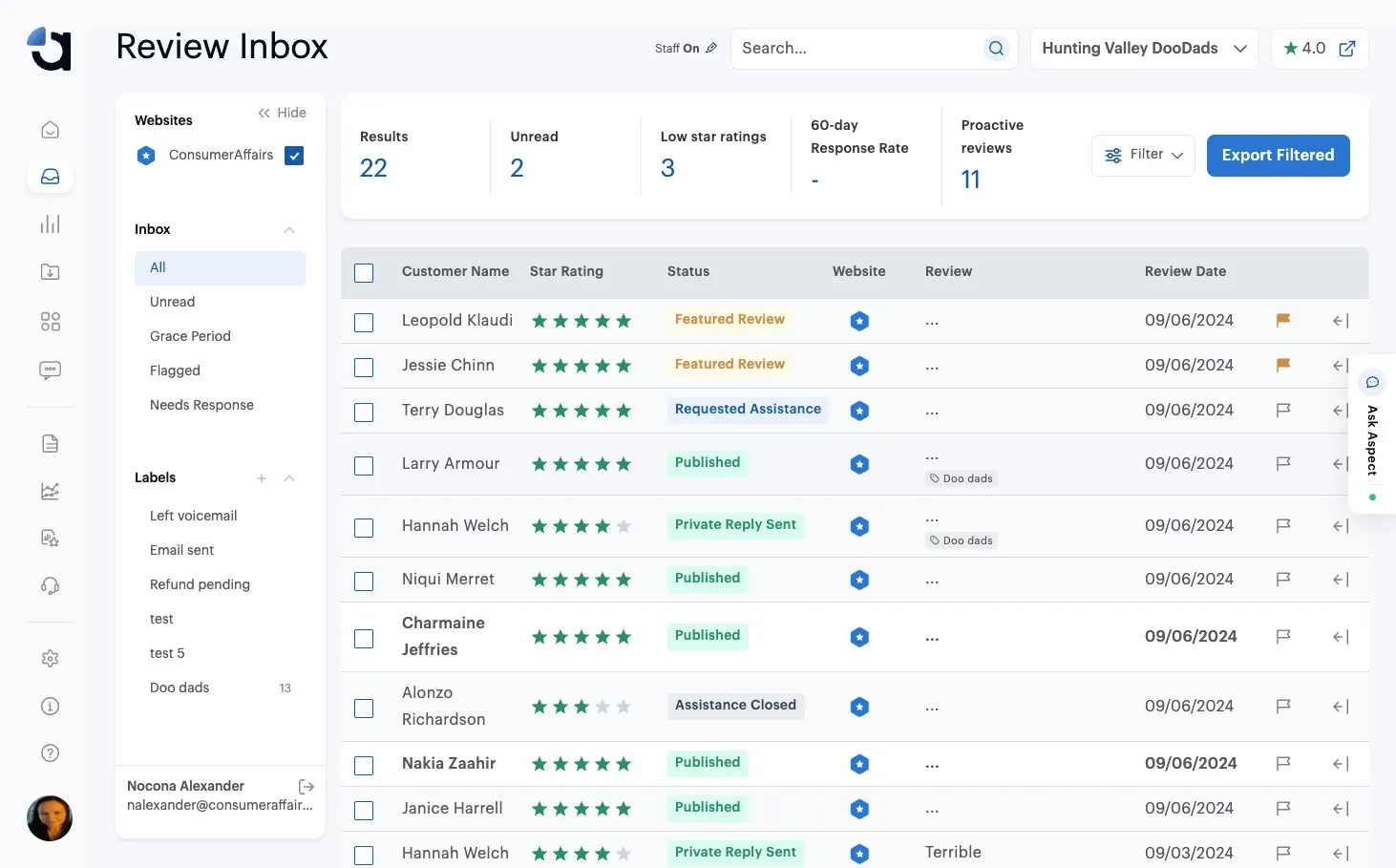
Click on the review you would like to reply to.
- 3
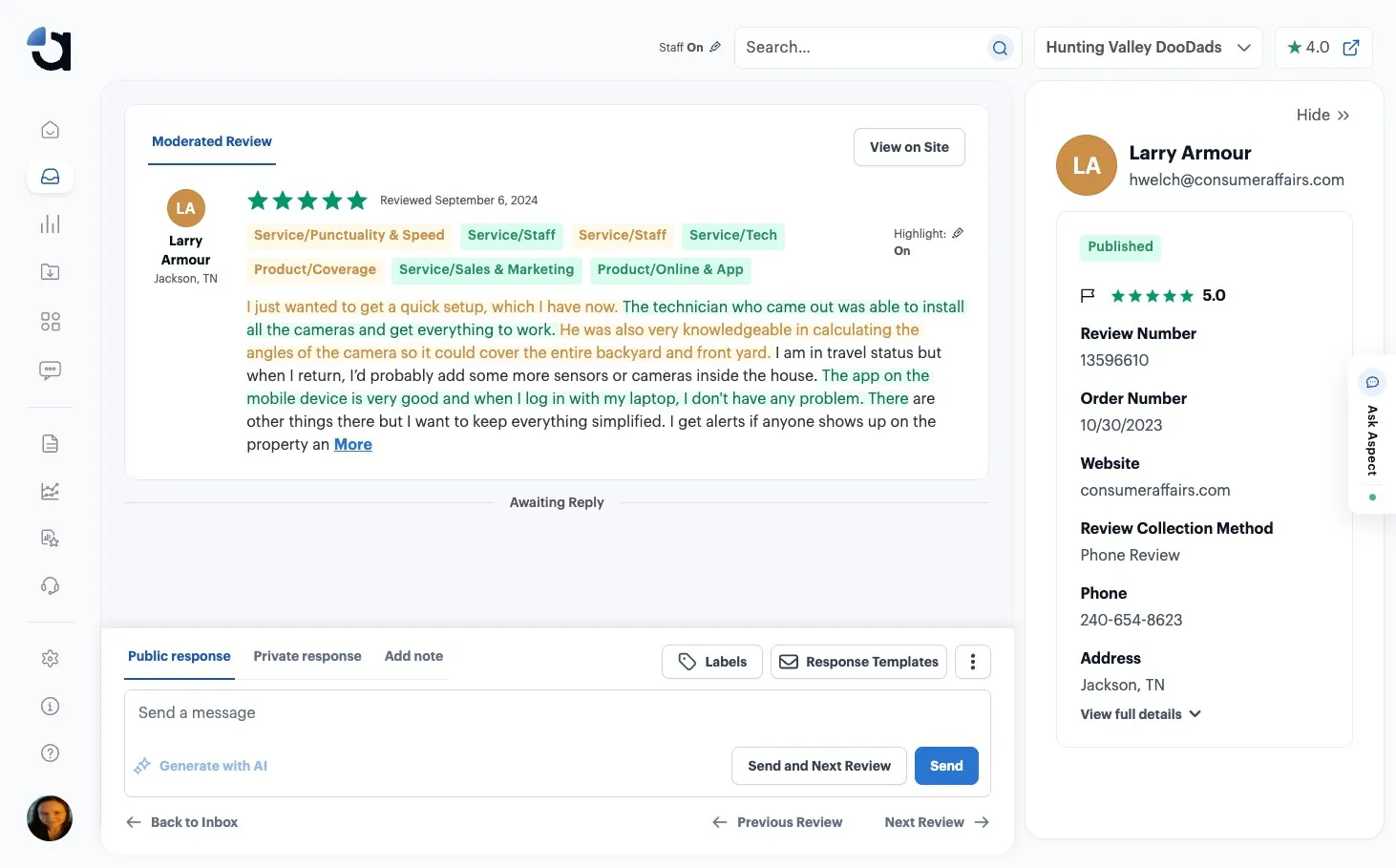
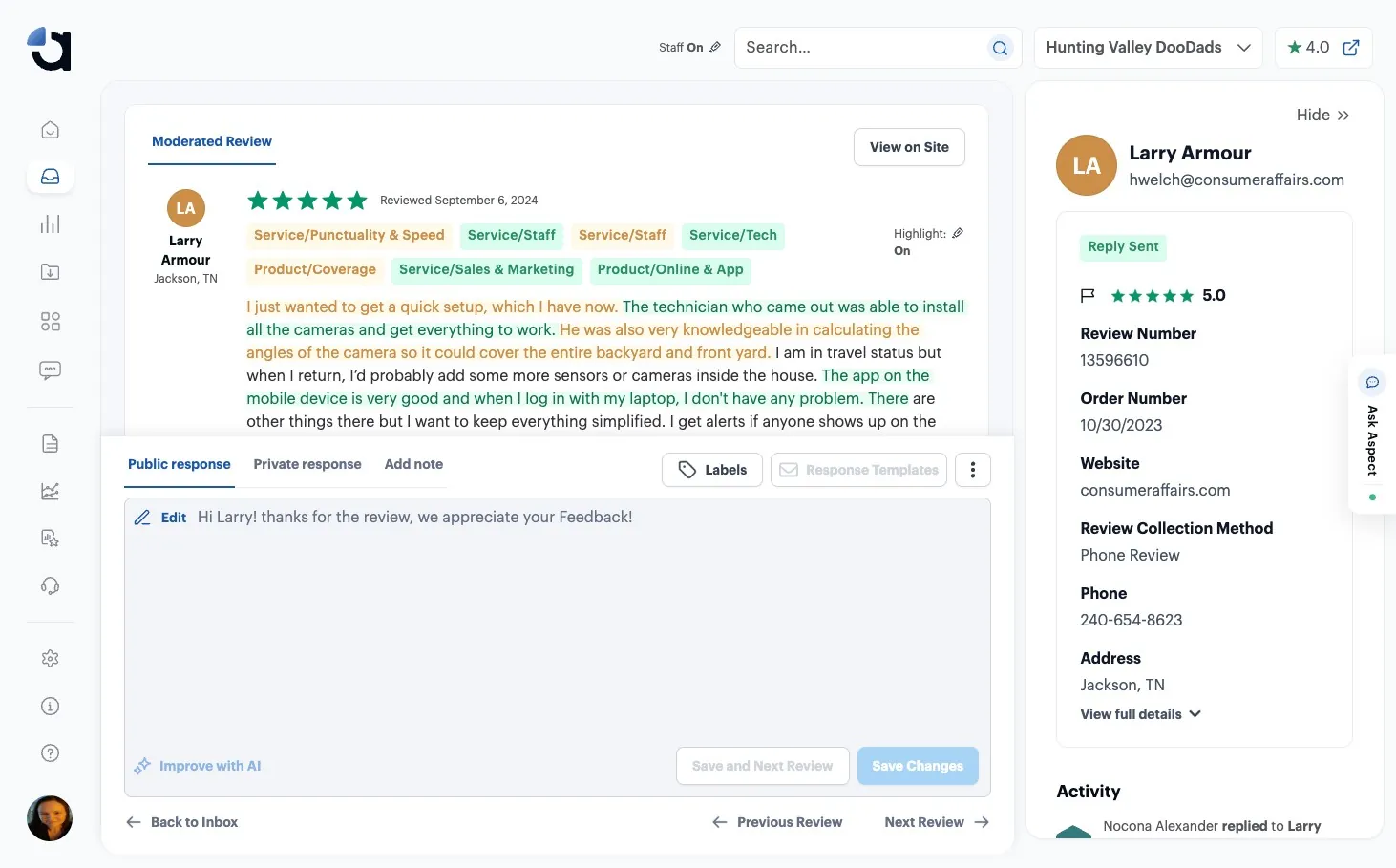
Choose the "Public Response" option and click into the "Send a message" field.
- 4
Add your public reply here. This sheet is a helpful resource for public and private response guidelines.
This is your opportunity to add a general acknowledgement of the consumer's experience, showcasing engagement to potential future customers.
- 5
Click "Send" to publish your reply.
- 6
You can make changes to your public reply as needed. Simply click "Edit" to update or add comments.
- 7
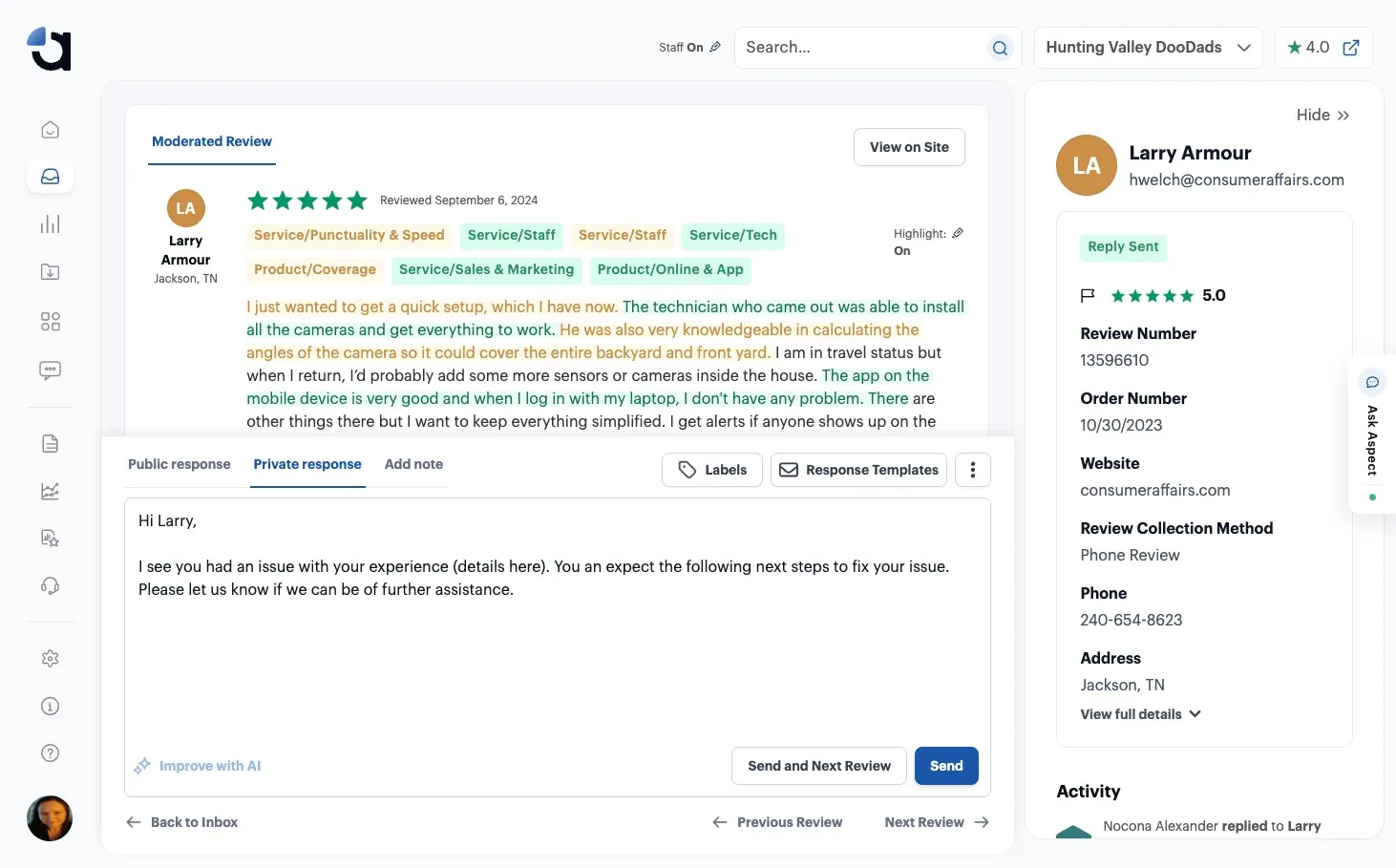
To initiate a conversation with the reviewer, select "Private response". This is intended as a tool for resolving any trouble they may have experienced.
Be as detailed as possible about any additional information needed, or additional outreach the reviewer can expect. This is a crucial first step in making positive changes to the customer's experience.
- 8
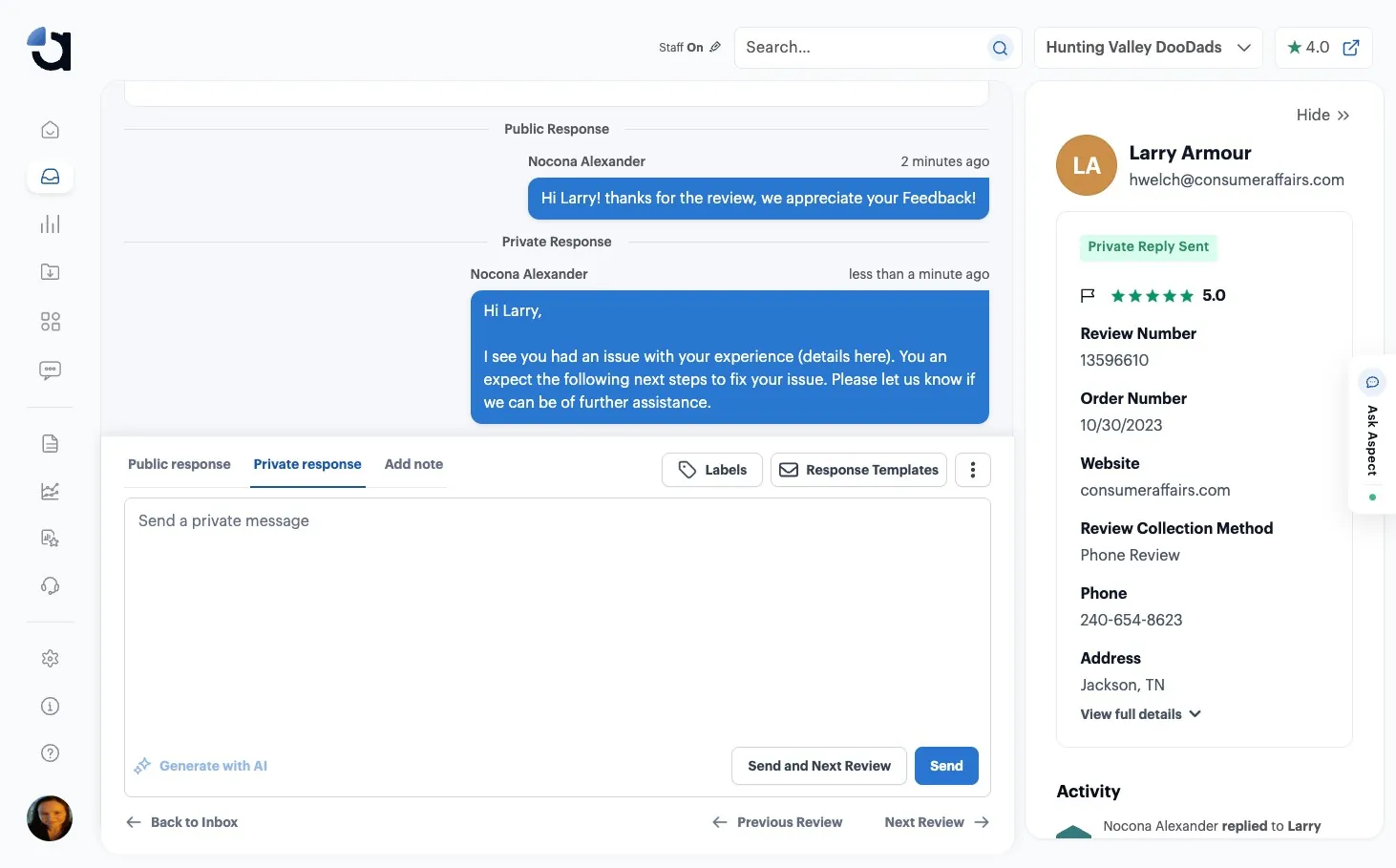
Click "Send" to notify the reviewer of your private message. The reviewer can reply or follow other steps outlined in your message to resolve their problem.
- 9
To include any necessary information regarding resolutions, or next steps needed, click "Add note" to create an internal communication that won't be shared with the consumer.
Click "Send" to add your note.
- 10
Example of Response/Note features:
Public reply: high-level acknowledgement of the reviewer's experience.
Private reply: acknowledgement of the issue experienced, and next steps the reviewer can expect.
Note: details of the resolution journey, and next steps to take, made available to your team.