How ConsumerAffairs uses cookies

This website utilizes technologies such as cookies to enable essential site functionality, as well as for analytics, personalization, and targeted advertising. To learn more, view the following link:

How to request Assisted Resolution

ConsumerAffairs contacts a reviewer on your behalf to confirm a resolution you've already reached, or to reconnect you with a customer who has stopped responding.

Watch the walkthrough

What Assisted Resolution is

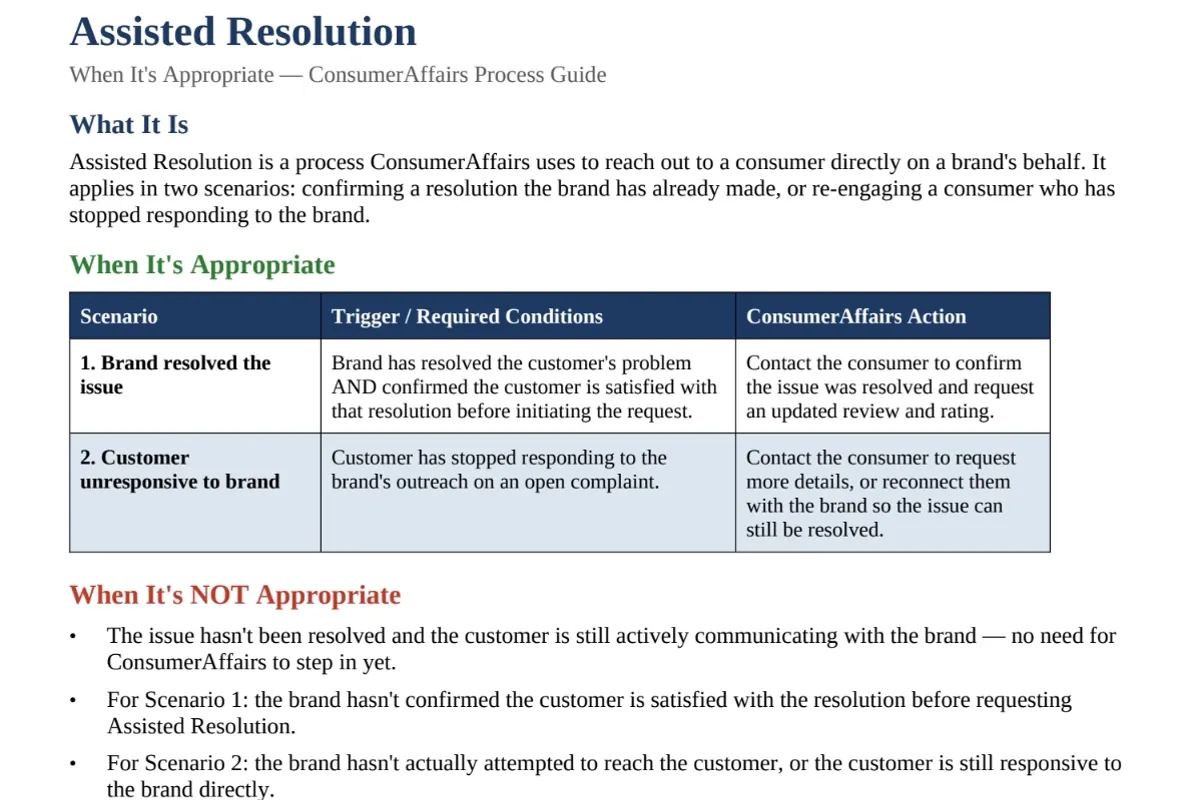
Assisted Resolution is a process ConsumerAffairs uses to reach out to a consumer directly on your behalf. It applies in two scenarios: confirming a resolution you've already made, or re-engaging a consumer who has stopped responding to you.

When to use it

1

You resolved the issue

Required conditions
You resolved the customer's problem and confirmed the customer is satisfied with that resolution before you request Assisted Resolution.
What ConsumerAffairs does
Contacts the consumer to confirm the issue was resolved and requests an updated review and rating.
2

The customer stopped responding

Required conditions
The customer stopped responding to your outreach on an open complaint.
What ConsumerAffairs does
Contacts the consumer to request more details, or reconnects them with you so the issue can still be resolved.

When not to use it

  • The issue isn't resolved yet and the customer is still talking with you. ConsumerAffairs doesn't need to step in yet.
  • Scenario 1: you haven't confirmed that the customer is satisfied with the resolution.
  • Scenario 2: you haven't actually tried to reach the customer, or the customer still responds to you directly.

Step by step

  1. 1

    Is Assisted Resolution the right next step for you?

  2. 2

    Confirm that the necessary initial conditions have been met. See When to use it.

    The Assisted Resolution process guide: what it is, when it's appropriate, and when it's not
  3. 3

    Navigate to your Aspect inbox.

  4. 4

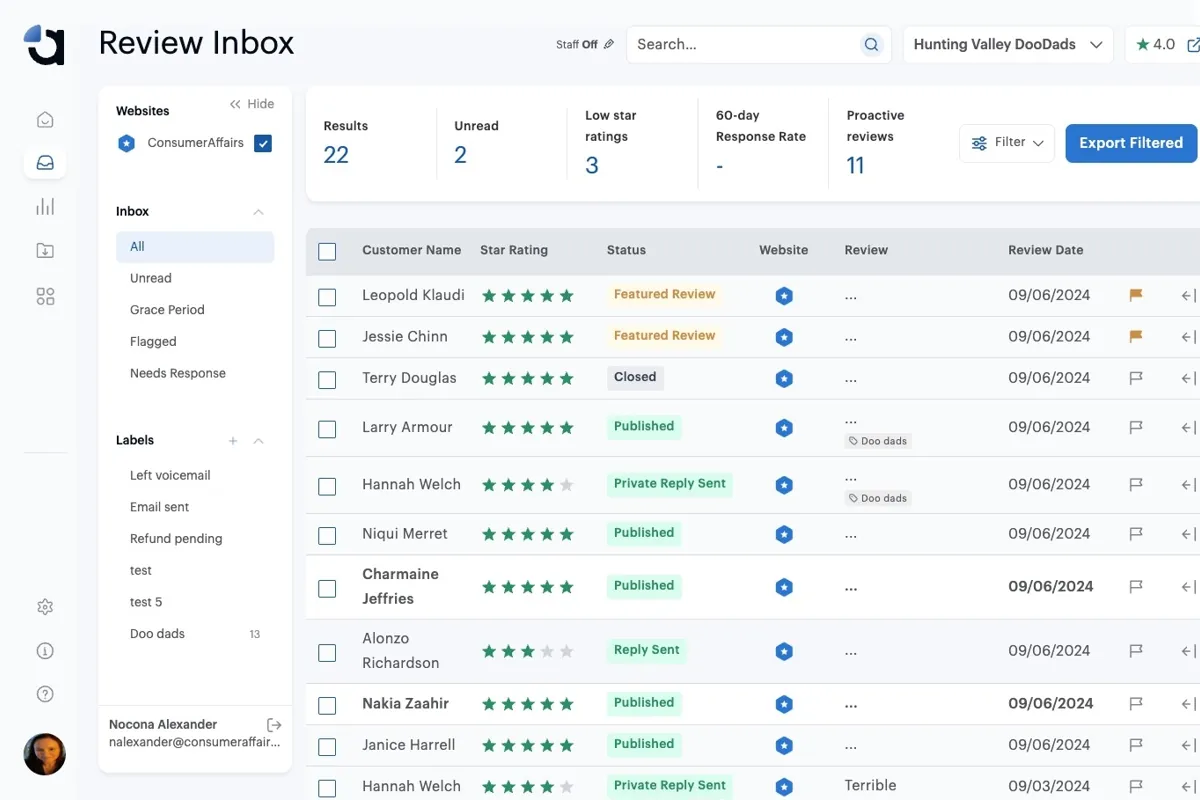
    Click on the review you would like to request assistance with.

    The Aspect Review Inbox listing reviews, with one review selected
  5. 5

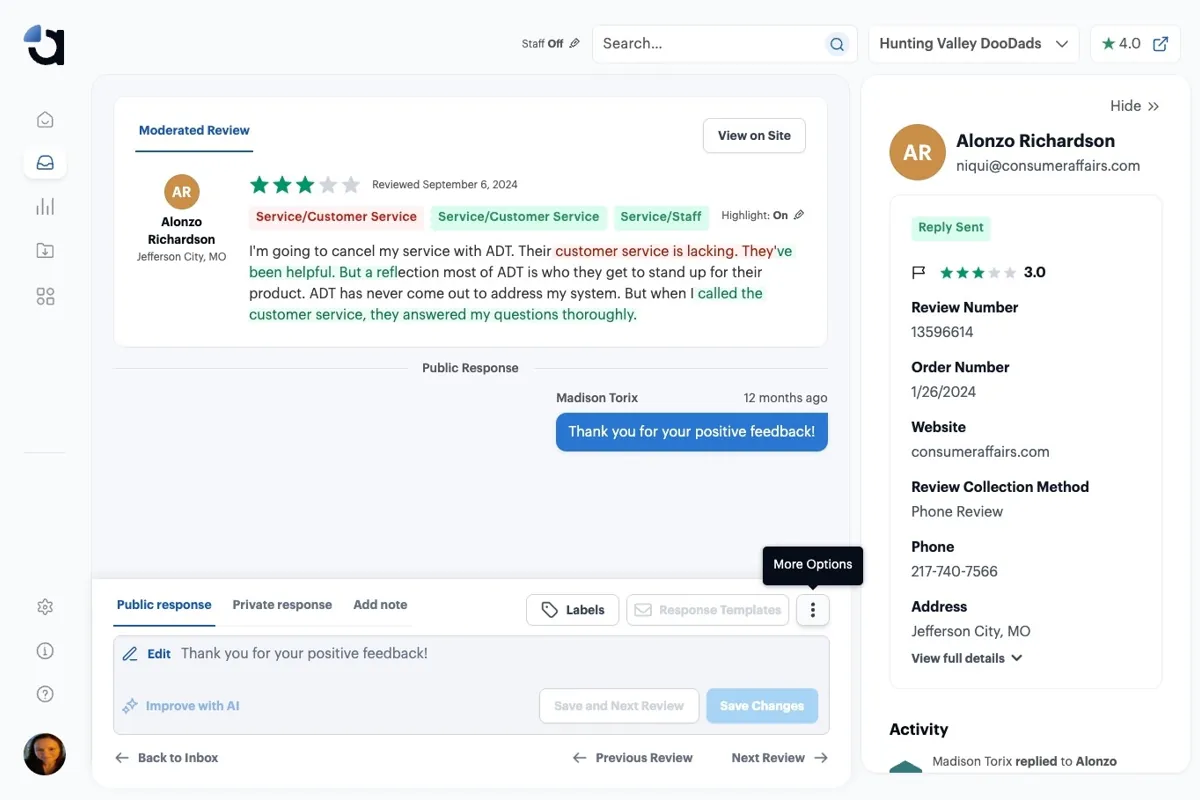
    Click the "More Options" icon.

    An open review in Aspect, with the More Options icon next to Response Templates
  6. 6

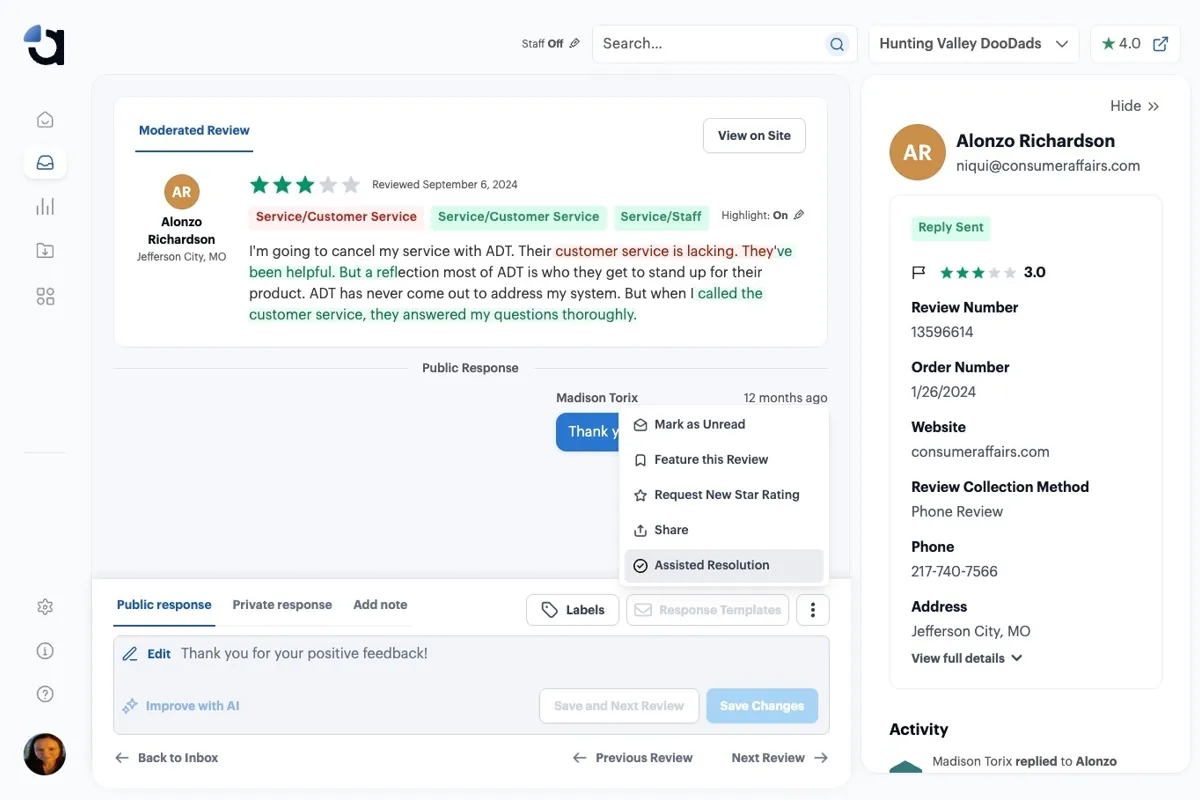
    Click "Assisted Resolution".

    The More Options menu, with Assisted Resolution as the last option
  7. 7

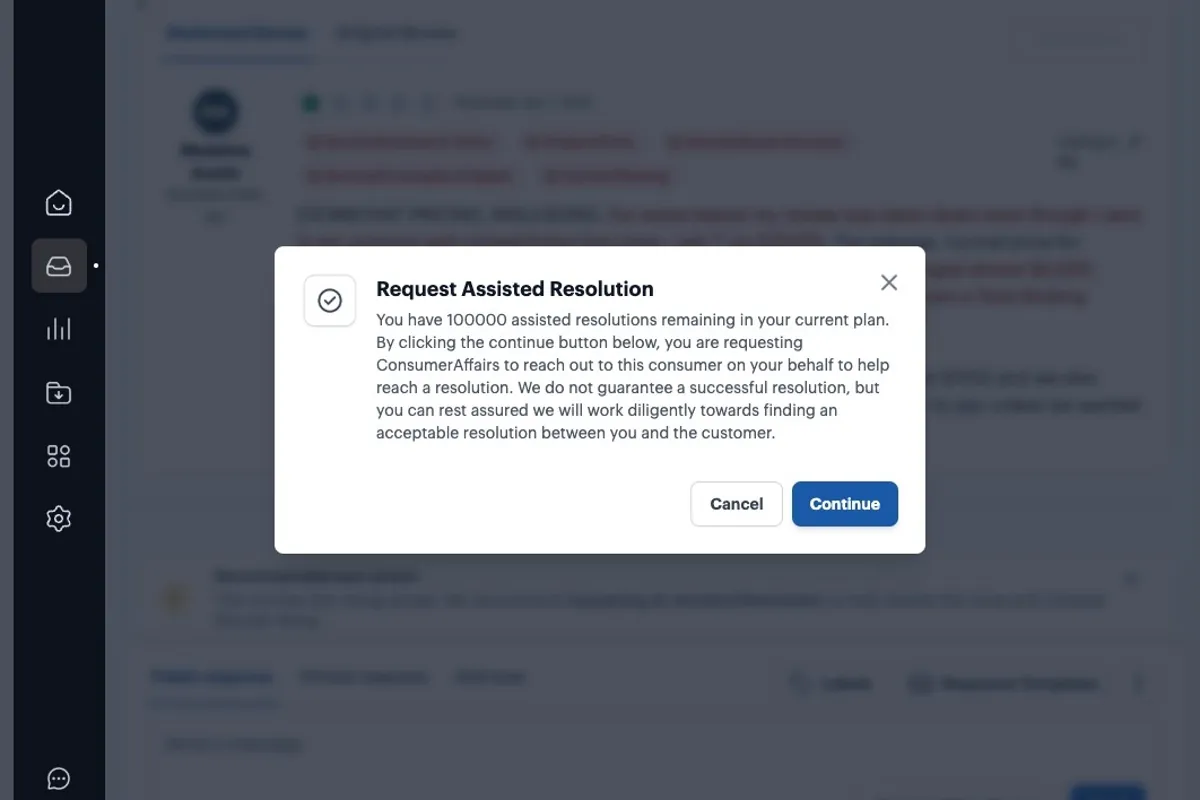
    Click "Continue".

    The Request Assisted Resolution dialog explaining the request, with Cancel and Continue buttons
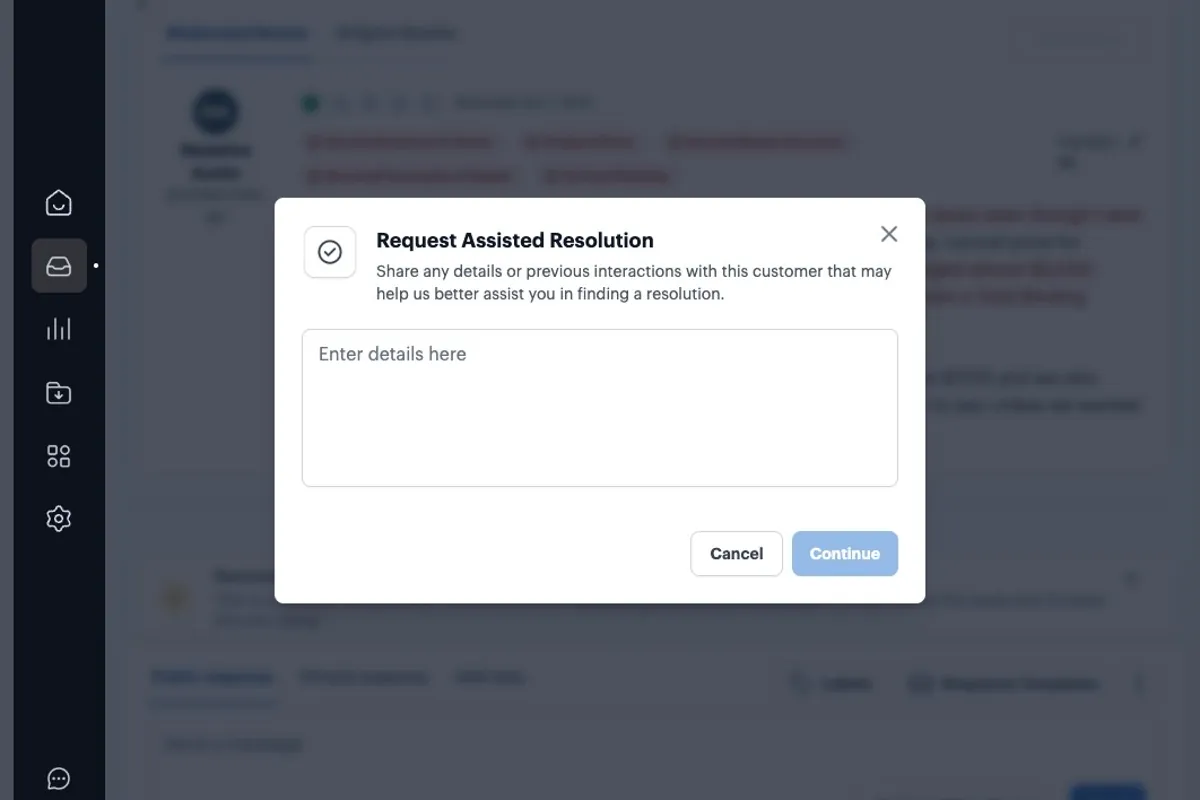
  8. 8

    Tell us about the resolution you reached, or request that we reach out to a client that has become unresponsive. The more details about the resolution, or the information you need us to gather, the better.

    The Request Assisted Resolution dialog with an empty details field
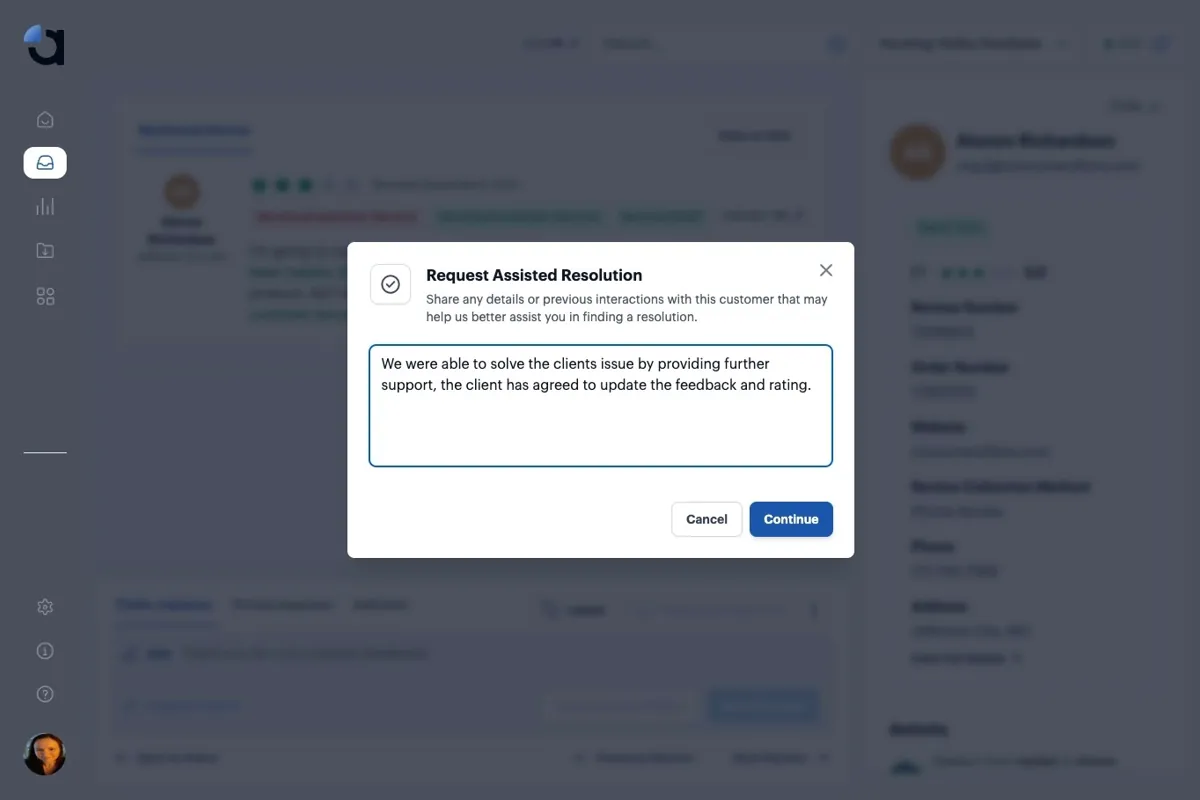
  9. 9

    Click "Continue" once you have added any relevant details.

    The details field filled in with a description of the resolution, with the Continue button enabled
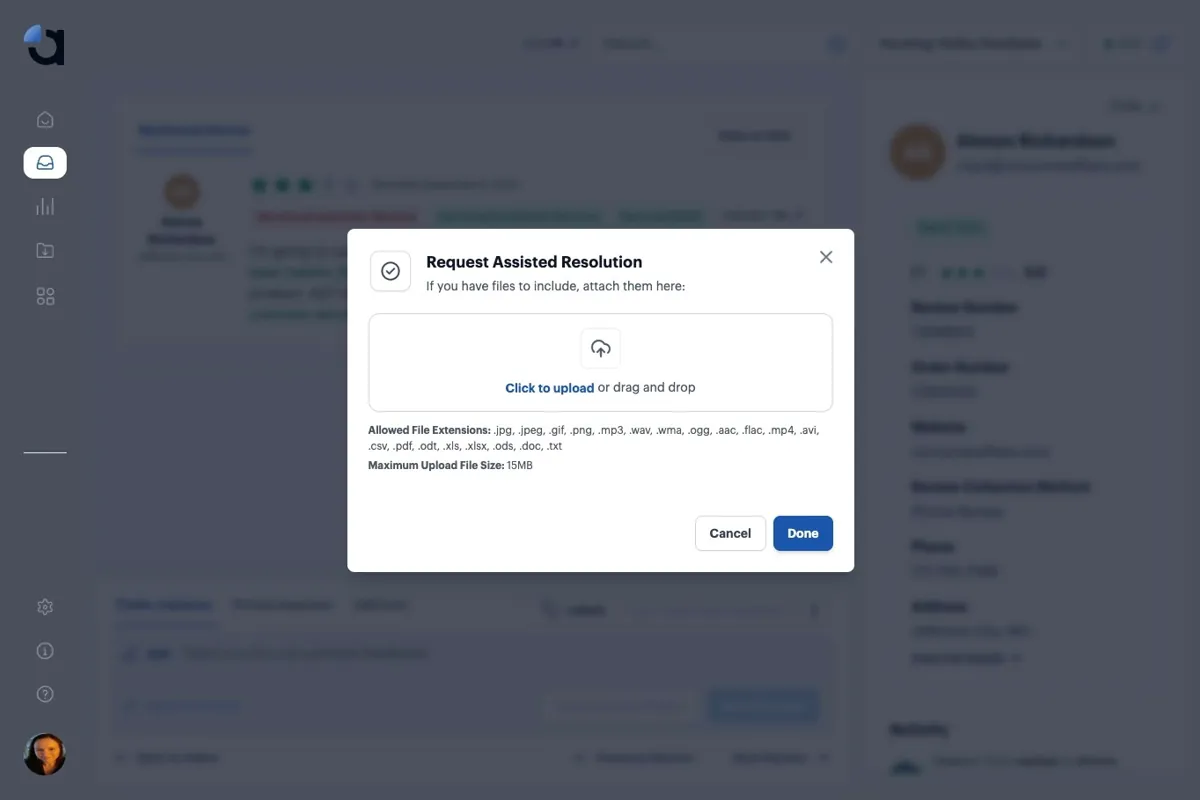
  10. 10

    Upload any supporting documents necessary. Click "Done" to ensure your Assisted Resolution is processed accordingly.

    The file upload step of the Request Assisted Resolution dialog, with the Done button

Not every negative review gets resolved, and that's OK. Responding publicly to consumers and using negative feedback to improve your business can be just as valuable as a higher Star Rating.